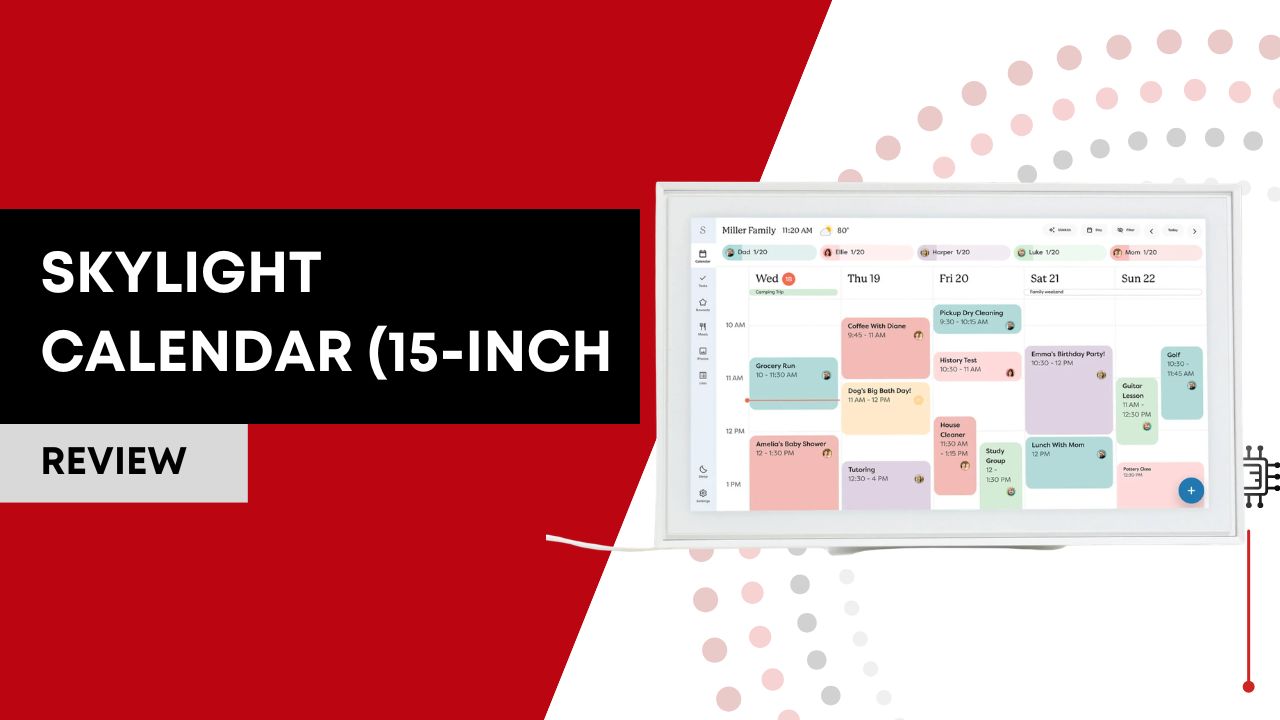

The Skylight Calendar (15-Inch) is a smart touchscreen family organizer built to centralize schedules, chores, tasks, and lists in one accessible hub. With a large 15″ HD display, seamless calendar syncing, and interactive planning tools, it’s designed to reduce daily chaos and keep everyone on the same page. It also offers optional features like meal planning, photo screensavers, and magic event import through its subscription plan.
Disclaimer: This review is a comprehensive synthesis of professional reviews, technical breakdowns, and real-user feedback from forums, Reddit threads, user reviews on retailer sites, and expert comparisons. I’ve not used this camera firsthand; everything here reflects what the broader online community actually says about the device. This post contains Amazon affiliate links, and I may earn a commission if you make a purchase.
The Skylight Calendar (15-inch) is a smart touchscreen wall calendar designed to act as a central hub for family scheduling, chore management, and everyday planning. In a world overflowing with to-do apps, shared calendars, and sticky notes, this device promises to replace the chaos with clarity, all displayed on a large interactive screen in your kitchen, hallway, or family room.
In this review, I break down the key features, explain how it actually performs day-to-day, share what real users are saying, compare it to alternatives, and help you decide if it’s worth the investment.
Table of Contents

Key Features
1. 15-inch High-Definition Touchscreen Display
The Skylight Calendar’s 15-inch IPS screen offers a 1920×1080 resolution, sharp and bright enough for multiple daily schedules and color-coded entries to be easily readable from a few feet away. This size hits a sweet spot: big enough to see important details at a glance, but small enough to not dominate a wall or counter space.
In real life, this means you can glance across a room and instantly know who’s in school, whose chores are done, and what’s for dinner without squinting or grabbing your phone.
2. Syncs with Your Primary Calendars
The Skylight Calendar connects to popular services like Google Calendar, Apple iCloud, Outlook, and iCal so events automatically populate in one place. This kind of sync is essential for reducing duplicate entries, if your partner adds a dentist appointment on their phone, it appears here without extra effort.
The upshot? No more “But I thought you added that!” moments when plans shift.
3. Family Profiles & Color Coding
Each family member can be assigned a profile and color. This doesn’t just look pretty, it gives you an instant visual map of who’s doing what and when. Seeing Mom’s green blocks next to Dad’s blue and the kids’ orange makes plans feel less like text lists and more like a shared family timeline.
4. Chore Management & Meal Planning
Beyond scheduling, the Skylight Calendar lets you build chore charts and meal plans right into the interface. This turns it from “just a calendar” into a genuine family command center. Parents note that kids enjoy ticking off chores, and dinner discussions shrink when “What’s for dinner?” lives on the screen.
In practice, these extras matter: chores go from nagging text messages to shared goals, and having meals planned for the week cuts down daily stress.
5. Wi-Fi, App, and Remote Access
The unit connects to Wi-Fi, and is paired with a mobile companion app that lets you update the calendar from outside the home. While some review sites note the app isn’t as polished as modern smartphone apps, it does give you essential control on the go.
This matters when you’re at work and someone texts “Add soccer practice”, you can do it from your phone instead of waiting to get home.
Real-World Performance & Daily Use
In everyday use, the Skylight Calendar does what it promises: it centralizes family organization.
Visibility & Touch Interaction: The wide 15-inch screen reacts well to touch and displays plenty of information at once. Multiple users mention that it’s easy for both adults and children to interact with, which helps adoption across age groups.
Sync Performance: Calendar syncing is generally reliable, though some users report occasional hiccups with less common services; most issues arise with Yahoo or niche calendar feeds.
App Experience: The mobile app helps manage events on the fly, but several reviewers find the UX dated or clunky compared to mainstream apps on iOS or Android.
Subscription Model: Core features are included, but some advanced capabilities, like photo slideshows, extended meal planning templates, and chore reward animations, are tied to Skylight’s subscription (Plus Plan). Users are split on this: some see it as reasonable, others wish these were included.
Display Idle Features: When not active, the calendar can act like a dynamic photo frame. However, even here the best features usually reside behind the subscription wall.
Mounting & Placement: While you can wall-mount it, some users find it heavy and prefer to keep it on a counter or stand, a minor but practical note if you’re drilling into drywall.
Real Users’ Opinions
Positive Voices:
“I bought this for my wife, she LOVES it and immediately started scheduling everything for the week.” – Reddit user
“Helps my family stay organized without constant texts and reminders.” – Best Buy reviewer
“Setup only took a few minutes and even my kids use it.” – Best Buy reviewer
Common Complaints:
“Some features are locked behind a subscription, feels like a cash grab.” – Best Buy reviewer
“The UX feels primitive compared to phone apps… sometimes clunky.” – Reddit user
“Not intuitive enough and now it mostly collects dust.” – Reddit user
These comments capture the mixed but generally positive sentiment: many users credit the Skylight Calendar with reducing daily friction, while others feel its interface could be more modern and its subscription strategy clearer.
Skylight Calendar vs Main Competitors
| Feature | Skylight Calendar (15″) | Google Nest Hub | Dakboard (DIY) |
|---|---|---|---|
| Dedicated Family Planner | ✅ | ❌ (not focused) | ❌ (DIY) |
| Touchscreen Interface | ✅ | ✅ | ⚠️ (varies) |
| Calendar Sync (major services) | ✅ | ✅ | ⚠️ (config) |
| Chore & Meal Features | ✅ | ❌ | ⚠️ |
| Subscription Required | Mixed | No | No |
| Photo Display | Yes (Plus Plan) | Yes | Custom |
If you want a plug-and-play family scheduling hub, Skylight wins because it’s built for that purpose. Devices like Google Nest Hub offer general smart display features but lack deep family organization tools. DIY solutions like Dakboard can be flexible, but require tinkering and aren’t as polished out of the box.
Choose Google Nest Hub if you also want voice assistants and multimedia features. Go with Skylight if shared family planning, chores, and meal organization are your primary goals.
Who Is It For, And Who It’s Not For
Ideal For:
- Busy families juggling multiple calendars and responsibilities.
- Households with children who benefit from visual chore charts and reminders.
- People who want a central, always-visible planner without pulling out phones.
The Skylight Calendar excels at bringing the family’s plans out of phones and onto one shared screen where everyone can see them. Its size, touch interaction, and specialized features make it a strong family organizer.
Not Ideal For:
- Budget-conscious users who don’t want ongoing subscription costs.
- People who prefer voice-powered smart assistants (like Alexa/Google Assistant).
- Households that just want a digital photo frame or basic notifications.
In other words: if you don’t need chore charts, meal planning, or shared scheduling, a general smart display or free calendar apps might do the job without the cost.
Setup, Usage & Optimization for Skylight Calendar (15-Inch)
Initial Setup
Getting the Skylight Calendar (15-Inch) up and running is refreshingly simple. Out of the box, you’ll find the touchscreen unit, power adapter, and wall-mount hardware. There is no battery; the device must remain plugged in at all times.
Here’s how to get started:
- Plug in the Skylight Calendar and power it on.
- Connect to your home Wi-Fi network (2.4GHz or dual-band recommended).
- Create or log into your Skylight account directly on the touchscreen.
- Download the Skylight mobile app (iOS or Android).
- Sync your calendars (Google, Apple iCloud, Outlook, Microsoft Exchange, etc.).
- Assign family members and color-code profiles.
Compatibility requirements:
- Stable home Wi-Fi connection
- Active calendar accounts (Google, Apple, Outlook)
- Smartphone for remote management
Google Calendar tends to provide the smoothest syncing experience. If you use iCloud, you may need to generate an app-specific password for proper connection.
Mounting is optional. Many families start by placing the Skylight Calendar on a kitchen counter using a stand before committing to wall installation. If mounting, position it near a power outlet, there is no internal battery backup.
Setup typically takes 10-20 minutes.
Recommended Usage
The Skylight Calendar (15-Inch) works best when treated as a central family dashboard, not just a digital calendar.
Ideal placement:
- Kitchen wall (most popular choice)
- Hallway near bedrooms
- Mudroom or entryway
- Shared home office
The 15-inch 1080p touchscreen is large enough to read from several feet away, so positioning at eye level in a high-traffic area maximizes visibility and engagement.
For best daily results:
- Assign each family member a unique color.
- Use recurring events for school, work, and weekly activities.
- Enable chore tracking for kids to build accountability.
- Update meal planning weekly instead of daily.
- Encourage everyone to check the display each morning.
The device becomes most effective when it replaces scattered paper notes, whiteboards, and “Did you tell me about that?” conversations. Consistency across the household is what unlocks its real value.
Optimization Tips
To get the most out of your Skylight Calendar (15-Inch), consider these practical improvements:
1. Centralize Calendar Sources
Avoid syncing multiple calendars that duplicate events. Instead, consolidate shared plans into one primary family calendar and selectively layer individual calendars. This keeps the display clean and readable.
2. Ensure Strong Wi-Fi Coverage
Because the Skylight Calendar relies on cloud syncing, weak Wi-Fi can cause delayed updates. If mounting far from your router, consider a mesh Wi-Fi extender to maintain stable connectivity.
3. Fine-Tune Brightness Settings
Adjust screen brightness depending on room lighting. Lower brightness in dim kitchens reduces glare and helps prolong screen longevity.
4. Use Profiles Strategically
Color coding is powerful, but only if used clearly. Assign consistent colors (e.g., one child always blue, another always green) and avoid frequently changing them.
5. Explore Plus Plan Features (If Subscribed)
If you opt for the Skylight Plus subscription, activate:
- Advanced chore rewards
- Automated meal planning templates
- Photo slideshow mode during idle time
Many users pay for the subscription but don’t fully configure these features, missing added value.
6. Keep Recurring Events Updated
When seasons change (new school year, new sports schedules), review recurring entries. Outdated recurring events are one of the most common causes of confusion.
Common Mistakes to Avoid
Several common setup and usage errors can limit the effectiveness of the Skylight Calendar:
- Mounting it too low or too high, reducing visibility.
- Overloading the display with too many synced calendars.
- Expecting voice assistant integration (it does not function like an Echo Show or Nest Hub).
- Placing it in a low-traffic room where no one sees it.
- Relying on one person to manage everything instead of encouraging shared input.
Another frequent mistake is purchasing it without household buy-in. The Skylight Calendar works best when everyone participates.
Final Verdict
The 15-inch Skylight Calendar stands out from generic smart displays by focusing on family coordination and task management. Its large, bright touch interface makes shared schedules visible and actionable, an improvement over scattered apps and paper planners.
You’ll love it if you want a central hub for family life. But its subscription model and occasional UI clunkiness mean it isn’t perfect, and not everyone will justify the price. If those concerns matter to you more than the convenience of shared visibility, look to alternatives.
FAQ
Does the Skylight Calendar (15-Inch) require a subscription?
No, the Skylight Calendar works without a subscription for core features like calendar syncing, profiles, and basic scheduling. However, advanced features such as Magic Import, meal planning tools, chore rewards, and photo screensavers require the optional Skylight Plus subscription.
Can the Skylight Calendar sync with multiple calendar accounts?
Yes. The Skylight Calendar (15-Inch) can sync with multiple accounts including Google Calendar, Apple iCloud, Outlook, Microsoft Exchange, Cozi, and Yahoo. Each family member can connect their own calendar, and events are color-coded for easy identification.
Does the Skylight Calendar work without Wi-Fi?
No. The Skylight Calendar requires a Wi-Fi connection for setup, syncing, and updates. It does not function as a fully offline calendar, and it must remain connected for real-time synchronization.
Can you mount the Skylight Calendar on the wall?
Yes. The Skylight Calendar (15-Inch) supports wall mounting and includes mounting hardware. Many users place it in kitchens, hallways, or entryways. Keep in mind that it must stay plugged into power, so mounting near an outlet is important.
Is the Skylight Calendar compatible with Alexa or Google Assistant?
No. The Skylight Calendar (15-Inch) does not support voice assistant integration like Amazon Alexa or Google Assistant. It is designed specifically as a touchscreen family planning hub rather than a general smart display.