
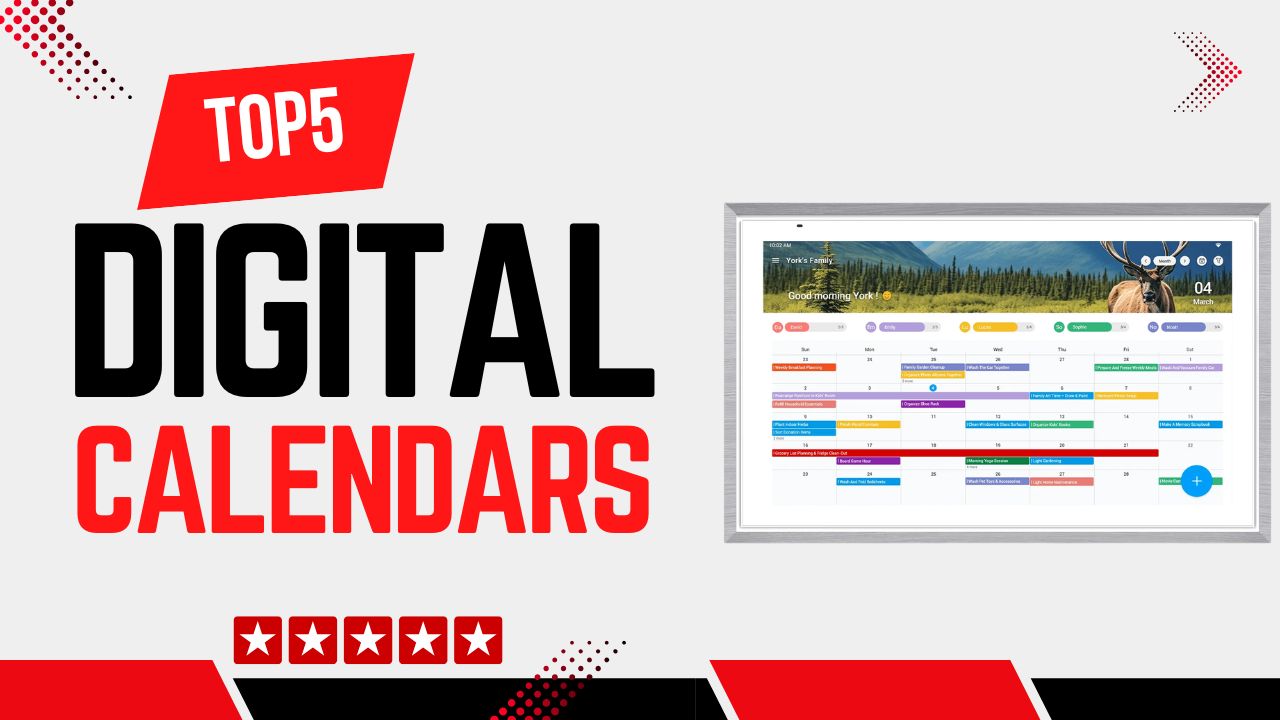
Digital calendars have transformed how we manage time, blending scheduling with smart home convenience and visual organization. Whether for family planning, work reminders, or display integration, choosing the right digital calendar can streamline daily life. This guide breaks down the top 5 digital calendars based on research, user experiences, and product capabilities.
Disclosure: As an Amazon Associate, I earn from qualifying purchases. This means that if you click on a link and make a purchase, I may receive a small commission at no additional cost to you.
Quick Look
Table of Contents

Why You Need a Digital Calendar
If you already use Google Calendar or Apple Calendar on your phone, you might wonder whether a digital calendar is even necessary. The difference is visibility and shared access. A Digital Calendar is designed to be always-on, always-visible, and shared across your home or office.
Who a Digital Calendar Is For, and Who Should Skip It
A Digital Calendar is ideal for:
• Families with 3-6 members who juggle school, work, sports, and appointments
• Remote workers who want a constant visual schedule on a 10-21-inch display
• Busy households that rely on shared Google, iCloud, or Outlook calendars
• Smart home users who want calendar + reminders in one central hub
• Offices or clinics that need a clear, visible planning board
You should skip a Digital Calendar if:
• You live alone and rely comfortably on your smartphone notifications
• You rarely schedule events in advance
• You don’t have reliable Wi-Fi (most require constant internet for syncing)
• You prefer paper planners and handwritten notes
Main Benefits and Problems It Solves
- Eliminates “I didn’t know” scheduling conflicts
A wall-mounted 15-21-inch display makes events visible from across the room. Everyone sees the same schedule. - Reduces mental overload
Instead of remembering appointments, practices, and meetings, the calendar acts as a visual command center. - Centralizes multiple calendar accounts
Most Digital Calendars sync with:
• Google Calendar
• Apple Calendar (iCloud)
• Microsoft Outlook
This means one screen can merge work + school + personal events.
- Improves family coordination
Color-coded events (for example, blue for Dad, pink for Mom, green for kids) make it instantly clear who is doing what. - Adds smart reminders
Many models allow push notifications or on-screen reminders, reducing missed appointments.
In short, a Digital Calendar turns scattered personal schedules into one unified system.
Privacy, Security & Data Sync Considerations for Digital Calendar
When choosing a Digital Calendar, privacy and data handling matter just as much as display size and features. Since these devices sync personal schedules, reminders, and sometimes contacts, understanding how data flows is essential.
What Data Is Synced (Google, Outlook, iCloud)
Most Digital Calendar devices sync through cloud-based calendar services such as:
- Google Calendar
- Microsoft Outlook (Exchange)
- Apple iCloud Calendar
When you connect your account, the device typically syncs:
- Event titles
- Dates and times
- Recurring schedules
- Locations
- Notes attached to events
- Color coding
Some models may also sync reminders and task lists if supported by the platform.
Important: Most Digital Calendars do not store your entire Google account data. They usually access only calendar-related information via secure API connections. However, always review the permissions screen when signing in.
Cloud Storage Concerns
A Digital Calendar does not usually store events locally in full. Instead:
- Data is pulled from the cloud in real time
- Changes are synced automatically across devices
- Events are stored on Google/iCloud/Outlook servers
Key concerns to consider:
- Always-On Internet Requirement
Without Wi-Fi, real-time syncing stops. Some devices may display previously synced events but won’t update changes. - Vendor Cloud Accounts
Certain brands require creating an account with their own cloud service. This means your data passes through both:
• Your calendar provider (Google, Apple, Microsoft)
• The manufacturer’s cloud platform
Check whether the brand uses encrypted HTTPS connections and two-factor authentication.
- Data Encryption
Look for:
• SSL/TLS encryption for data transmission
• OAuth authentication for Google/Microsoft login
These are standard security protocols that prevent password exposure.
Family Access Control
One major benefit of a Digital Calendar is shared access, but that also requires proper management.
Look for:
- Individual user profiles (at least 4-6 profiles for families)
- Color-coded calendar separation
- Permission controls (view-only vs edit access)
Best practice:
- Give children view-only access if supported
- Keep administrative access limited to 1–2 adults
- Avoid sharing your primary Google account password
Some devices allow sending invite links instead of sharing login credentials; this is safer.
Smart Assistant Privacy (Alexa / Google)
If your Digital Calendar includes Alexa or Google Assistant (like smart display hybrids), consider:
Voice Data Collection
Voice assistants process commands in the cloud. This means voice recordings may be stored temporarily to improve accuracy.
Microphone & Camera Controls
Look for:
- Physical camera shutters
- Microphone mute buttons
- Ability to disable voice history
You can usually manage privacy settings through:
- Alexa app → Privacy → Review Voice History
- Google Home app → Assistant → Your Data
If privacy is your top concern, choose a Digital Calendar without built-in voice assistants.
Password Protection & Account Separation
To maintain security:
- Enable two-factor authentication (2FA) on Google, Outlook, or Apple ID
- Use separate accounts for family members
- Avoid using one shared email login for the entire household
Some Digital Calendars allow PIN locking for settings access. This prevents children from accidentally changing configurations.
Best practice setup:
- Parent account = admin
- Each family member = separate linked calendar
- Device settings protected by PIN
Security is rarely an issue when properly configured, but ignoring these basics increases risk.
Buying Tips for Digital Calendar
What Actually Matters When Buying a Digital Calendar
Display Size (10–21 inches)
- 10–12 inches: Best for desks or kitchen counters
- 15 inches: Ideal for wall mounting in a hallway or kitchen
- 21 inches: Best for large rooms or smart home hubs
If you want visibility from 8–12 feet away, choose at least 15 inches.
Touchscreen Responsiveness
Look for a capacitive touchscreen (like a smartphone). Resistive touchscreens feel outdated and less accurate.
Wi-Fi Stability
Since syncing happens via Wi-Fi, dual-band (2.4GHz + 5GHz) support is better than 2.4GHz only.
Calendar Compatibility
Make sure it supports:
- Google Calendar (most common)
- iCloud sync (if you use iPhones)
- Outlook (for work environments)
Multi-User Support
For families, choose models that allow at least 4–6 user profiles with color coding.
Mounting Options
Check whether it includes:
- Wall-mount bracket
- Table stand
- VESA compatibility (for flexible mounting)
Brightness Level
For bright kitchens or offices, you want a screen bright enough (around 300-400 nits or higher) so events remain readable in daylight.
Specs or Features That Are Marketing Fluff
Ultra-HD Resolution
A 4K screen sounds impressive, but for calendar grids and text, Full HD (1920×1080) is more than enough.
Massive Storage
Digital calendars don’t store large files. Cloud syncing handles most data.
Fancy Photo Effects
Photo frame features are nice, but they should not be the main reason to buy.
Excessive Smart Assistant Claims
If you only want a calendar, paying for advanced smart assistant features may be unnecessary.
Common Buying Mistakes to Avoid
Buying Too Small
Many regret choosing 10-inch displays for wall mounting. It becomes hard to read from across the room.
Ignoring Wi-Fi Quality
Weak internet leads to delayed sync and missed updates.
Overcomplicating the Setup
Some smart-display hybrids are powerful but overly complex for users who just want scheduling.
Not Checking Calendar Integration
If it doesn’t sync smoothly with your existing ecosystem, it becomes frustrating.
Top 5 Digital Calendars
#1 Skylight Calendar
- All-in-one digital calendar display
- Automatic sync with popular calendar services
- Interactive chore charts & custom lists
- Mobile app integration
- Multiple screen sizes
- Display Size: 10″ / 15″ / 27″ touchscreen (varies by model)
- Resolution: HD (10″ & 15″) and higher for larger displays
- Connectivity: Wi-Fi required for syncing events
- Calendar Support: Google, iCloud, Outlook, Yahoo, Cozi, and other feeds
- Mobile App: iOS and Android access included
- Mounting: Countertop stand + optional wall mount available
- Software Updates: Automatic over-the-air updates
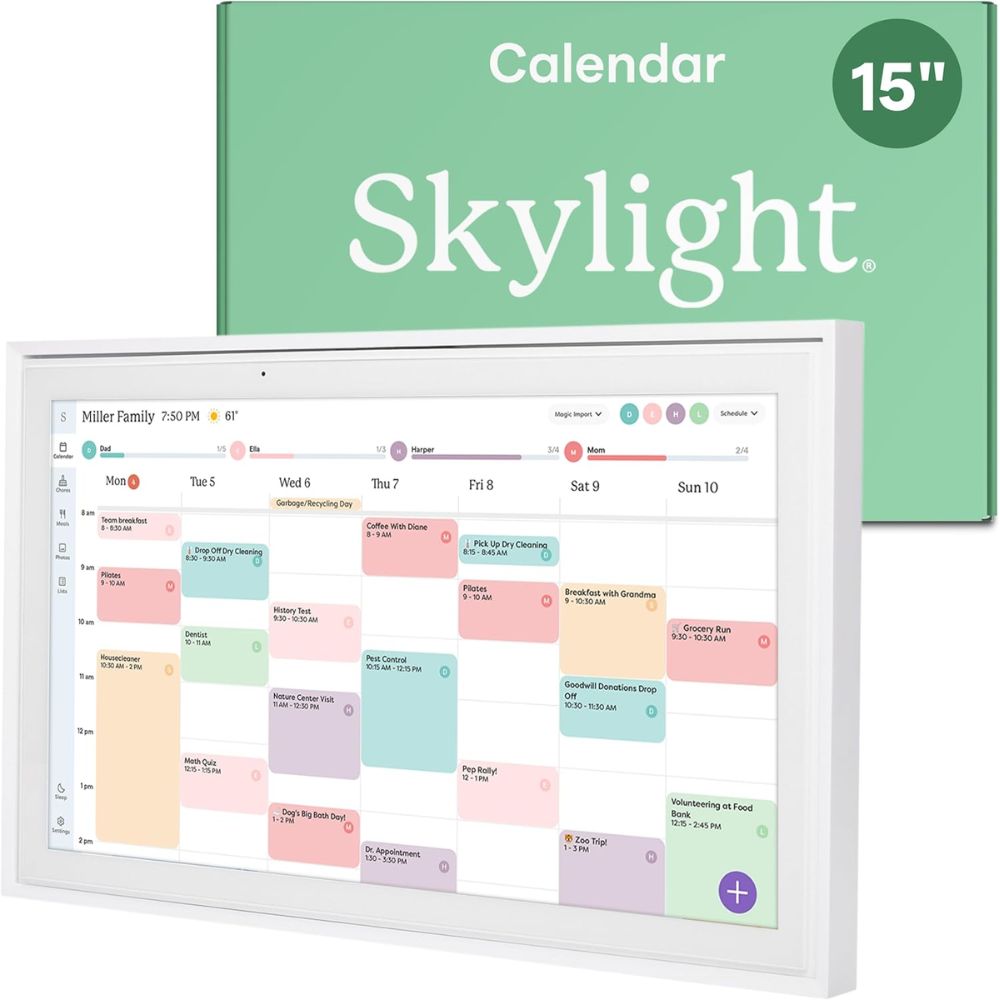
The Skylight Calendar is a dedicated digital calendar display that replaces traditional paper planners with a modern connected hub. It combines a capacitive touchscreen with auto-syncing software that pulls events from widely used calendar platforms, including Google, Outlook, and iCloud, into one unified view that the whole family can see at a glance. This makes it particularly useful for busy households juggling multiple schedules, chores, and responsibilities, so everyone knows what’s coming up without having to check their phones constantly.
Design-wise, Skylight balances form and function. The devices offer slim profiles with minimal bezels and a bright, responsive display that works well mounted on a wall or placed on a countertop. Each size (10″, 15″, and 27″) targets different needs, from a compact desk organizer to a large wall-mounted family hub, and all models support intuitive touch navigation for adding and editing events directly on the screen.
User feedback tends to praise the Skylight Calendar for simplifying everyday organization and centralizing family communication. Many owners report fewer missed appointments and better coordination thanks to shared lists, chore assignments, and color-coded profiles. However, some users feel the interface can initially seem simpler than they expected compared to smartphone apps, and setup occasionally requires patience when syncing certain calendars.
Pros:
- Comprehensive family-focused digital calendar and organizer in one device.
- Automatic multi-platform calendar syncing keeps events up to date.
- Interactive chore charts, meals, and lists for household coordination.
- Mobile app extends management beyond the home display.
Cons:
- Sync setup with some calendar services can be fiddly for some users.
- Interface may feel less polished compared with modern smartphone UX.
- Some premium features require optional subscription plans.
The Skylight Calendar is ideal for families, busy couples, or households that juggle multiple schedules and want a central digital calendar display that’s visible to everyone. It’s also a great fit for users who prefer a physical touchscreen hub, rather than relying solely on phones, to manage chores, meal plans, grocery lists, and daily routines in a shared space.
#2 Cozyla Calendar+ 2
- Large interactive touchscreen digital calendar
- Seamless two-way sync with popular calendars
- Customizable widgets & split-screen functionality.
- Family routines, chores & meal planners
- Smart display + smart home integration
- Display Size: Up to 32″ (multiple sizes available)
- Resolution: 1080P FHD (some models offer 4K UHD)
- Operating System: Android-based smart OS
- Connectivity: Wi-Fi 6, Bluetooth 5.0
- Ports: USB-C and USB-A (varies by model)
- Voice Assistant: Google Assistant support
- Orientation: Landscape or Portrait with rotating wall mount included (for larger sizes)
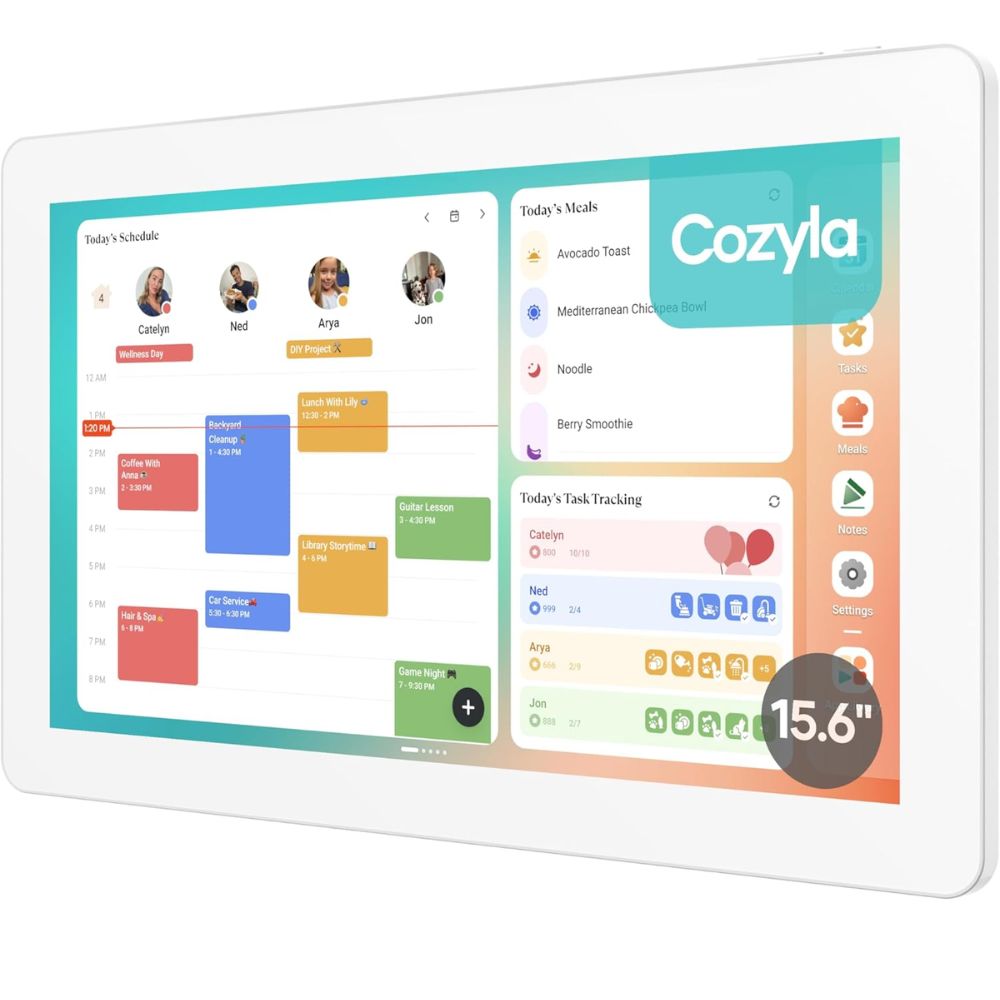
The Cozyla Calendar+ 2 redefines what a digital calendar can be by combining traditional schedule management with a full smart display experience, effectively replacing multiple devices with one interactive hub. Its large touchscreen, especially in the popular 32″ size, provides a central place for families to view and interact with shared calendars from major services like Google, Apple, and Outlook. Two-way sync means edits on the Cozyla show up in your phone app (and vice versa), helping eliminate confusion around double-bookings and missed events.
Beyond pure scheduling, this digital calendar doubles as a multitasking smart display. Users can customize dashboards with widgets for weather, to-dos, meal plans and more, and even use split-screen mode to view different apps at once. This makes it more than just a static calendar; it’s a dynamic family command center that adapts to how you organize your life.
However, real-world users note a learning curve with setup and software navigation, especially for those unfamiliar with Android interfaces. Some report sync quirks or redundant events when pulling in calendars from multiple users, and ease of use varies depending on tech comfort. Still, for households that invest the time to personalize their setup, the Cozyla Calendar+ 2 can dramatically centralize planning, chores, meal prep and even multimedia use in one place.
Pros:
- Centralizes family scheduling with two-way sync across major digital calendars.
- Flexible widgets and split-screen boost productivity over basic digital calendars.
- Multi-functional with chores, meal planning, and smart home integration.
- Works with voice assistant (Google Assistant) for hands-free commands.
Cons:
- Setup and software can be unintuitive for some users, especially Apple users.
- Sync issues or duplicate events can occur with certain calendar configurations.
- Large display models are pricey and heavy to install.
The Cozyla Calendar+ 2 is ideal for busy families, multitaskers, and smart-home enthusiasts who want a digital calendar that functions as a central household hub, not just a schedule display. It’s especially well-suited for homes where everyone’s calendars need to be seen in one integrated view and where extra tools like chore tracking and meal planning add daily value.
#3 Amazon Echo Show 21
- Large 21.5″ smart touchscreen display
- Alexa-powered voice control & calendar support
- Customizable widgets, including calendar & lists
- Smart home hub & entertainment center
- Enhanced audiovisual experience
- Display: 21.5″ Full HD (1920 × 1080) capacitive touchscreen.
- Speakers: Dual woofers + tweeters with enhanced bass.
- Camera: 13 MP auto-framing with privacy shutter.
- Connectivity: Wi-Fi 6E, Bluetooth, Matter, Zigbee, Thread.
- Voice Assistant: Alexa integrated with Visual ID personalization.
- Smart Home Hub: Yes, built-in controller for compatible devices.
- Orientation: Wall mountable or stand (stand sold separately).
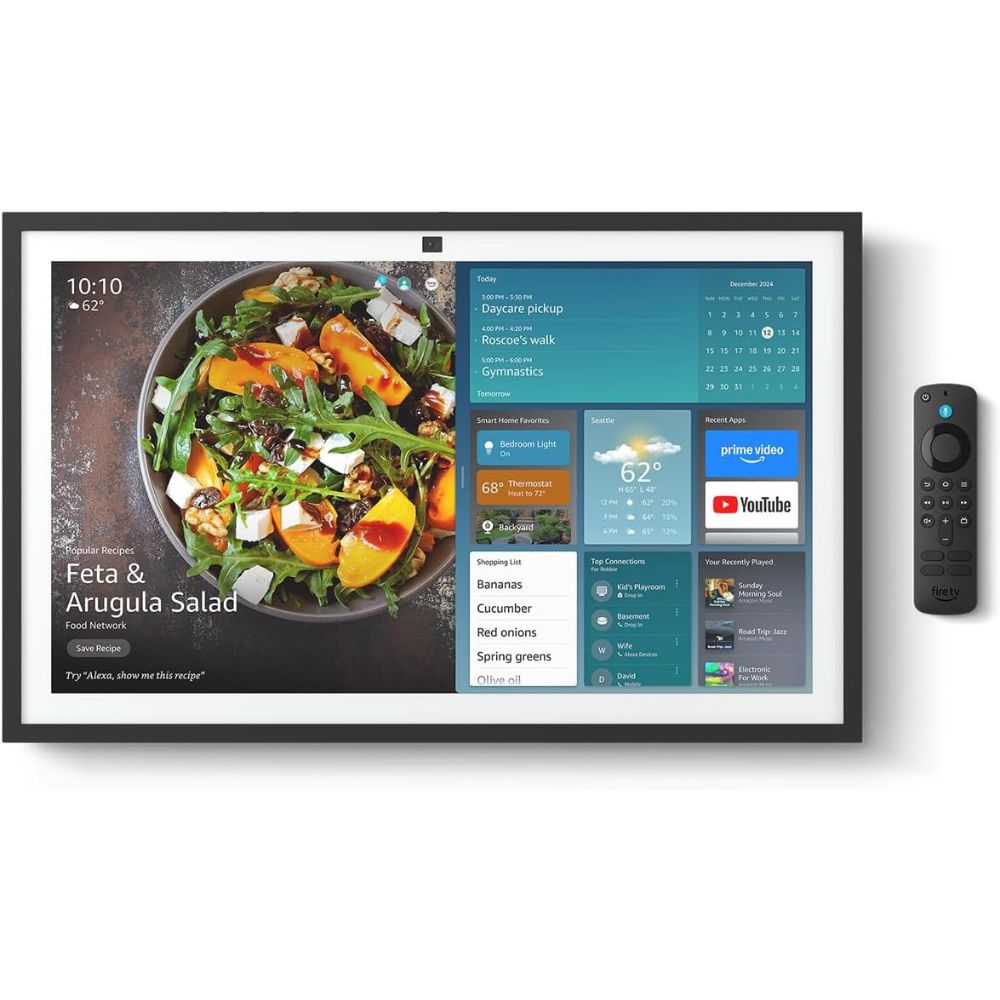
The Amazon Echo Show 21 isn’t a digital calendar device in the pure sense like standalone units focused solely on scheduling; it’s a versatile smart display that includes calendar and reminders as part of a broader Alexa experience. The large 21.5″ screen makes it easier to read schedules, widgets, and upcoming events compared with smaller smart displays, and you can ask Alexa with voice commands to show your calendar or reminders hands-free, useful in kitchens, offices, or communal spaces.
Unlike dedicated calendar hubs, the Echo Show 21 treats a calendar as one of many widgets. You can pin it alongside to-do lists, weather, and notes, but the calendar view is more basic, often showing upcoming events and dots for multiple linked calendars, rather than rich grid views of months or weeks out of the box. Some users choose third-party web dashboards (e.g., via the Silk browser) for richer calendar layouts.
Beyond scheduling, this device doubles as an Alexa smart home hub and entertainment center. You get Fire TV integration for streaming, robust smart home controls, and improved sound and camera hardware that make it a multitasking centerpiece rather than a single-purpose calendar. That breadth is powerful for households invested in Amazon’s ecosystem, but may dilute the calendar focus for those wanting a dedicated digital calendar experience.
Pros:
- Large, bright 21.5″ display makes calendar info easier to view daily.
- Alexa voice control simplifies setting reminders and checking your schedule.
- Multi-functional: calendar widgets, smart home hub, Fire TV, and video calls.
- Solid build quality with enhanced sound and camera for more than just organization.
Cons:
- Calendar features feel secondary to other functions and lack rich native grid views.
- Customization and useful calendars sometimes require digging through settings or third-party solutions.
- Screen can show ads or Amazon content prominently, which may interfere with pure scheduling use.
The Amazon Echo Show 21 is ideal for users who want a smart display that includes digital calendar and scheduling alongside robust voice-assistant features, entertainment, smart home control, and communication tools. It’s best for households already invested in Alexa and Amazon services who value multifunctionality over a calendar-only device, especially where big, easy-to-see visuals help daily planning in common living areas.
#4 Dragon Touch Digital Wall Calendar
- All‑in‑one smart digital calendar display
- Multi‑calendar syncing
- Interactive task & chore charts
- Dual‑purpose display
- Flexible mounting options
- Display Size: Options from 10.1″ up to 32″ (10/15/21.5/24/27/32 inch)
- Resolution: 1280×800 or 1920×1080 (size‑dependent)
- Storage: 32 GB internal memory
- Connectivity: Dual‑band Wi‑Fi (2.4 G & 5 G)
- Calendar Support: Google, Apple, Outlook, Yahoo, Cozi, and most public calendars via eCalendar app integration
- Mounting: Wall‑mountable or countertop with auto‑rotate support (except for the smallest sizes)
- App Control: eCalendar mobile app for remote scheduling and management
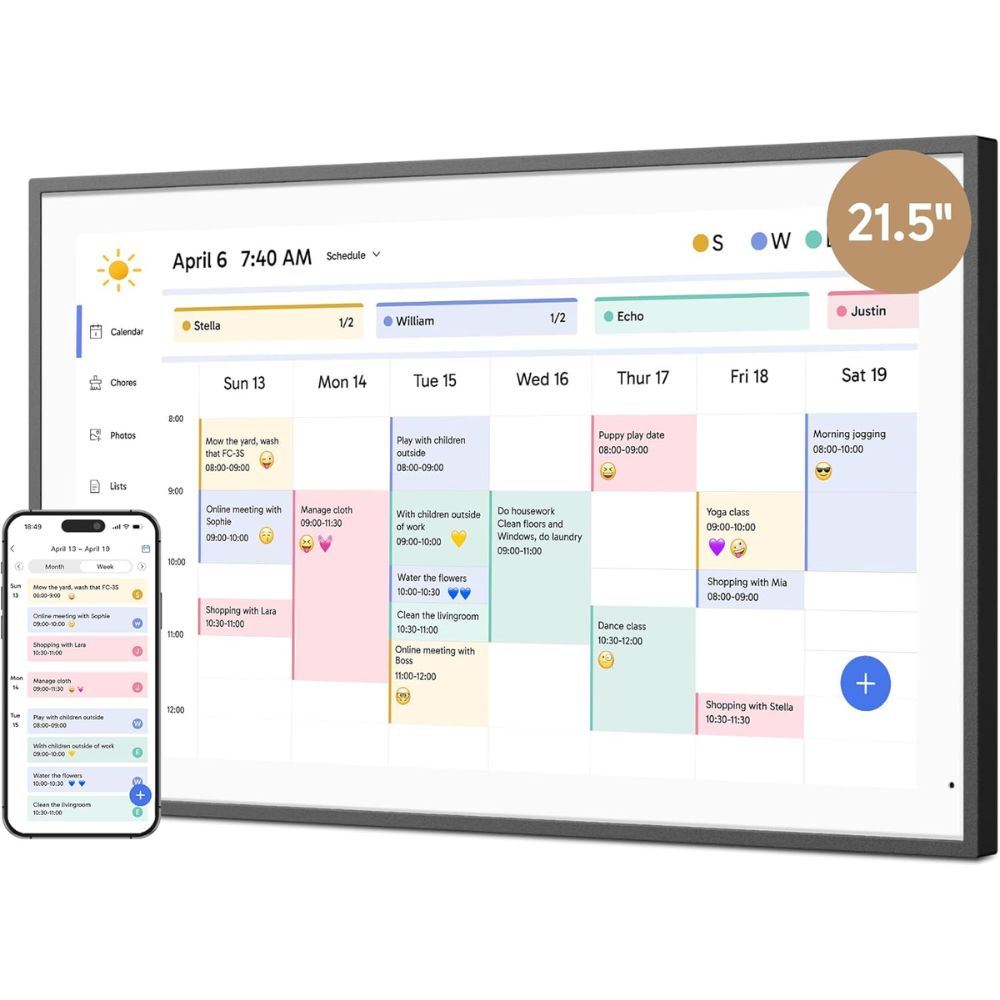
The Dragon Touch Digital Wall Calendar is a feature‑rich digital calendar solution designed to act as a central command center for busy households. Offering multiple size options ranging from compact 10.1″ displays up to large 32″ screens, it adapts to kitchens, living rooms or offices while pulling in calendar data from the most popular platforms like Google, Apple, Outlook, Yahoo, and Cozi. Syncing is handled through the free eCalendar mobile app, allowing users to update events on the go and have changes reflected instantly on the wall unit.
Beyond basic scheduling, this digital calendar blends organizational tools with engaging features like interactive chore charts and meal planners. Families can assign different colors to each member, track tasks, and even reward progress with a star system, making it more than just a date tracker but a motivational home planner. The design also cleverly doubles as a digital photo frame, displaying cherished memories when the calendar isn’t front and center, which adds decorative value to everyday functionality.
Users often praise its robust syncing and intuitive touch controls, though setup may take a bit more time for households with multiple calendars or users. The broad size selection means you can choose a screen that fits your space and needs, but larger units, while visually impactful, require a suitable location and wall‑mount installation. In practice, the Dragon Touch calendar holds up as a practical, visually engaging hub for organization, collaboration and daily life management for modern homes.
Pros:
- Syncs with major calendar services through Wi‑Fi and the eCalendar app.
- Interactive chore and task charts help manage family responsibilities.
- Doubles as an elegant digital photo frame.
- Multiple display sizes and mounting options to fit any room.
Cons:
- Setup and calendar syncing can be slightly complex with many users.
- Must remain plugged in, no battery backup.
- Some advanced features require familiarity with the mobile app.
This digital calendar is ideal for families, roommates, or small offices looking for a digital calendar that does more than just show dates. It’s great for users who want interactive task lists, chore tracking, and shared scheduling in a visible, touchscreen hub that replaces multiple paper planners and sticky notes with one centralized device. Whether used in the kitchen, entryway, or shared workspace, it helps keep groups on the same page.
#5 Mezed Digital Smart Calendar
- Multi‑functional touchscreen digital calendar display
- Syncs with popular calendar services
- Interactive chore & meal planner tools
- Auto reminders & weather updates
- Photo frame & cloud sharing
- Display Size: 10.1″ HD touchscreen (other sizes like 15.6″ and 21.5″ also available depending on model)
- Resolution: 1280×800 (for 10.1″ model)
- Connectivity: Wi‑Fi (for syncing calendars and mobile app control)
- Calendar Support: Google, iCloud, Outlook, Yahoo, Cozi
- Features: Chore charts, meal planning, smart reminders, weather display, photo frame mode
- App Control: Dedicated Mezed mobile application for iOS/Android
- Power: 12 V power adapter (included)
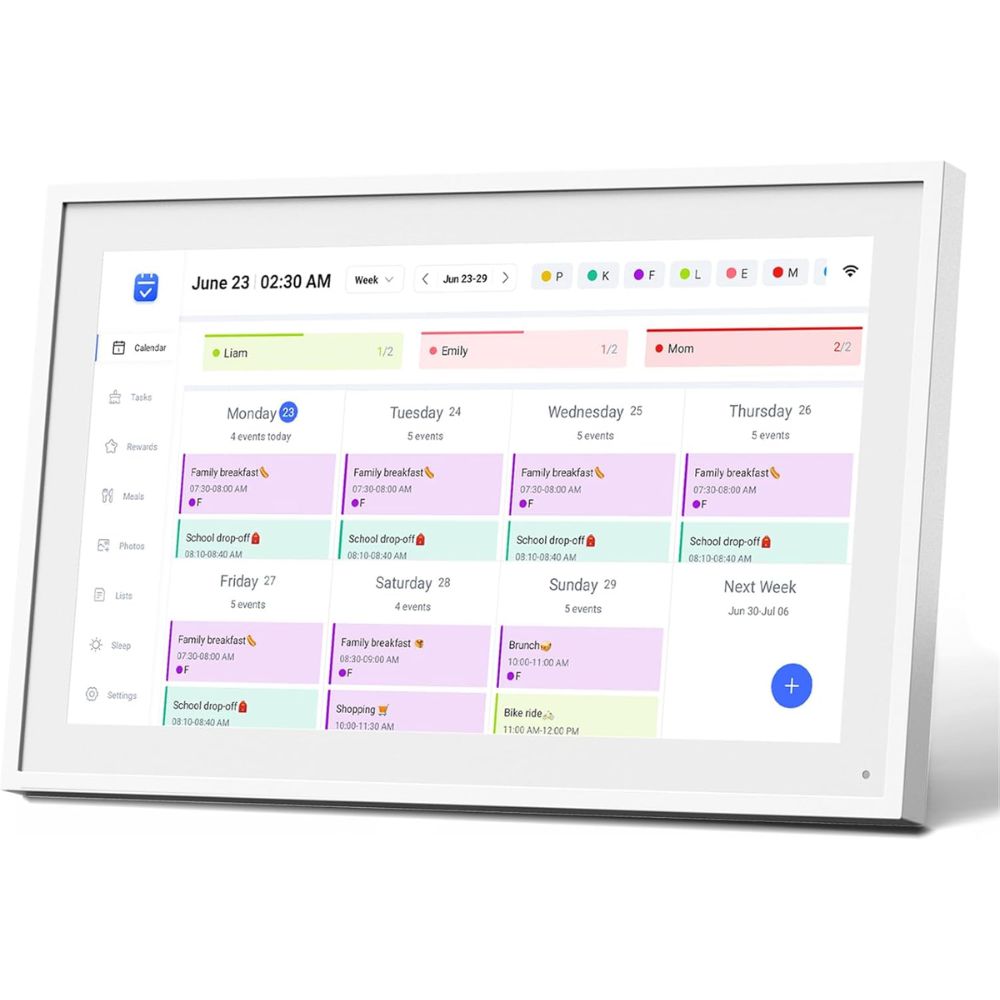
The Mezed Digital Smart Calendar is designed as a versatile digital calendar solution that goes beyond simply displaying dates and events. It acts as a central home command center for scheduling, planning, and reminders. Its intuitive touchscreen interface and built‑in Wi‑Fi connectivity allow users to sync with major calendar services like Google Calendar, iCloud, Outlook, Yahoo, and Cozi, bringing all of a household’s appointments and commitments together in one place. This makes it especially useful for families or shared living situations where multiple schedules must align.
One of the standout aspects of this device is its multifaceted functionality. In addition to standard calendar views, it includes interactive tools such as color‑coded chore charts and meal planning boards that help households manage daily responsibilities and mealtimes. Smart reminders and built‑in weather updates further enhance its utility by giving timely alerts and contextual information so everyone knows what the day holds. When not showing schedules or tasks, it can switch to a digital photo frame mode, displaying photos uploaded via the companion app, a feature that adds emotional value and personalization to the calendar hub.
While many users enjoy how this digital calendar centralizes organization and adds convenience with cloud photo sharing and remote app control, some reviews note that setup and syncing may take a bit of patience initially. However, once configured, the Mezed calendar’s blend of scheduling, meal planning, chore tracking, and reminders makes it a practical and engaging tool for improving household coordination and helping busy families keep track of daily life.
Pros:
- Combines scheduling, chores, meal planning, and reminders in one digital calendar hub.
- Syncs automatically with popular calendar platforms for unified scheduling.
- Photo frame and cloud photo sharing adds personalization and emotional value.
- Color‑coded profiles and interactive task charts help families coordinate effectively.
Cons:
- Initial setup and calendar syncing can be somewhat fiddly for some users.
- Interface and app design may feel less polished than those of more expensive models.
- Advanced features like meal planning or photo slideshows may feel secondary to core calendar use for some.
The Mezed Digital Smart Calendar is ideal for families, shared households, and busy professionals who want a digital calendar display that centralizes schedules from multiple sources and offers added household tools like chores, meal planning, and reminders. Its touchscreen hub and companion mobile app make it suited for tech‑comfortable users seeking a connected home organizer that blends practical scheduling with personalized photo and task features.
Usage Tips for Digital Calendar
How to Get the Best Results from a Digital Calendar
Place It Strategically
Install it where everyone passes daily:
- Kitchen wall
- Entry hallway
- Home office
- Near dining area
Eye-level wall placement improves visibility.
Use Color Coding Properly
Assign consistent colors:
- Work – Blue
- School – Green
- Personal – Yellow
- Sports – Red
This improves quick recognition.
Set Recurring Events
Use recurring scheduling for:
- Weekly meetings
- Garbage collection
- School activities
This saves time and prevents missed events.
Enable Notifications Wisely
Turn on reminders 30-60 minutes before important events to prevent late departures.
Sync All Calendars at Once
Instead of manually entering events, link:
- iCloud
- Outlook
This creates one unified dashboard.
Mistakes Users Make with Digital Calendar
- Treating It Like a Photo Frame Only.
While photos are a bonus, the main power is scheduling.
- Not Training Family Members.
Everyone must add events consistently. If only one person updates it, the system breaks down.
- Ignoring Updates.
Firmware updates often improve sync stability and performance.
- Mounting It Too High.
If installed above eye level, it becomes decorative instead of functional.
- Overloading the Screen.
Too many widgets, weather panels, or smart apps can clutter the calendar view. Keep the display clean and readable.
Setup & Installation Guide (Step-by-Step)
Setting up a Digital Calendar is generally straightforward, but following proper steps ensures smooth syncing and reliable performance.
Step 1: Choose Mounting Option (Wall vs Stand)
Wall Mount (Best for families):
- Ideal height: 57-60 inches from floor (eye level)
- Best for: 15-21 inch displays
- Use the included wall bracket or VESA mount if supported
| Pros: • Central visibility • Clean look • Harder to knock over | Cons: • Requires drilling • Less portable |
Table Stand (Best for desks or kitchens):
- Ideal for: 10-12 inch displays
- Place on a stable, flat surface
- Keep near a power outlet
| Pros: • Easy relocation • No drilling required | Cons: • Limited viewing distance • Can look cluttered |
Always ensure proximity to a power outlet, since most Digital Calendars are plug-in devices.
Step 2: Connect to Wi-Fi
During initial boot:
- Power on the device
- Select your Wi-Fi network
- Enter password
Tips:
- • Use a 5GHz network for faster syncing (if supported)
- • Ensure signal strength is strong (at least -60 dBm or better)
- • Avoid placing near thick concrete walls
If Wi-Fi drops frequently, consider:
- Moving the router closer
- Using Wi-Fi extender
- Switching from 2.4GHz to 5GHz
Stable internet is critical for reliable calendar updates.
Step 3: Sync Your Calendar Accounts
Most Digital Calendars follow this process:
- Open Settings
- Select “Add Calendar Account”
- Choose Google / iCloud / Outlook
- Sign in via secure browser window
- Grant calendar permissions
Important:
Only grant calendar access – avoid unnecessary permissions like email or contacts if optional.
After syncing:
- Events should appear within 30–60 seconds
- Recurring events may take slightly longer
Step 4: Create Profiles for Family Members
For households:
- Go to Profiles or Users
- Add each family member
- Assign color code
- Link their individual calendar
Recommended setup:
- Max 6–8 users for clarity
- Distinct colors (avoid similar shades)
If the device supports it, set editing permissions accordingly.
Step 5: Customize Display Settings
Adjust:
- Brightness (300-400 nits recommended for kitchens)
- Sleep schedule (turn off screen at night)
- Layout view (weekly vs monthly grid)
For large 15-21-inch displays, weekly view works best for readability from a distance.
Common Setup Mistakes
- Mounting Too High
If above eye level, people stop looking at it. - Weak Wi-Fi Placement
Causes sync delays and frustration. - Using One Shared Login
Reduces privacy and makes tracking edits difficult. - Overcrowding the Calendar
Too many linked calendars create visual chaos. Keep it simple. - Skipping Firmware Updates
Updates often improve stability and sync speed.
FAQ
What Should I Look for in a Digital Calendar?
Focus on display size, visibility, ease of syncing with your existing calendars, and any smart features like voice control or family sharing.
Can These Calendars Sync with Multiple Devices?
Yes, all listed calendars support syncing with smartphones and various calendar services, though the ease of setup and level of integration can vary by product.
Do Digital Calendars Require Internet?
Most require Wi-Fi for real-time syncing and updates. Some may still display local events offline once synced.
Are These Suitable for Family Use?
Yes. Products in this list include multi-user support or family sharing features, making them great for shared scheduling.
How Do Digital Calendars Compare to Smartphones?
Digital calendars provide a persistent, always-visible schedule display designed for shared spaces, whereas smartphones are personal and not always in sight.